Orders Overview
The Orders Overview displays a table listing all orders associated with the logged-in seller.
The table supports column sorting and filtering.
The table includes the following columns:
Stage → Displays an icon associated with the current stage of the process
NEW
Not acknowledged: dark blue plus icon →

Not confirmed: dark blue plus icon →
CONFIRMED
With changes: dark blue check icon →

Without changes: dark blue check icon →
SHIPPED
Fully: dark blue truck icon →

Partially: turquoise truck icon →

INVOICED
Fully: dark blue euro icon →

Partially: turquoise euro icon →

ON-HOLD
Dark blue hourglass icon →

DELETED
Dark blue trash icon →

Buyer reference → Displays the buyer reference for the order. Filtering is available using partial or exact match.
Seller reference → Displays the seller reference for the order. Filtering is available using partial or exact match.
Buyer → Displays the buyer company name. Filtering on a single buyer is available.
Creation → Displays the creation date of the order.
Actions → Displays a list of actions that can be performed on the order. This feature is not yet available.
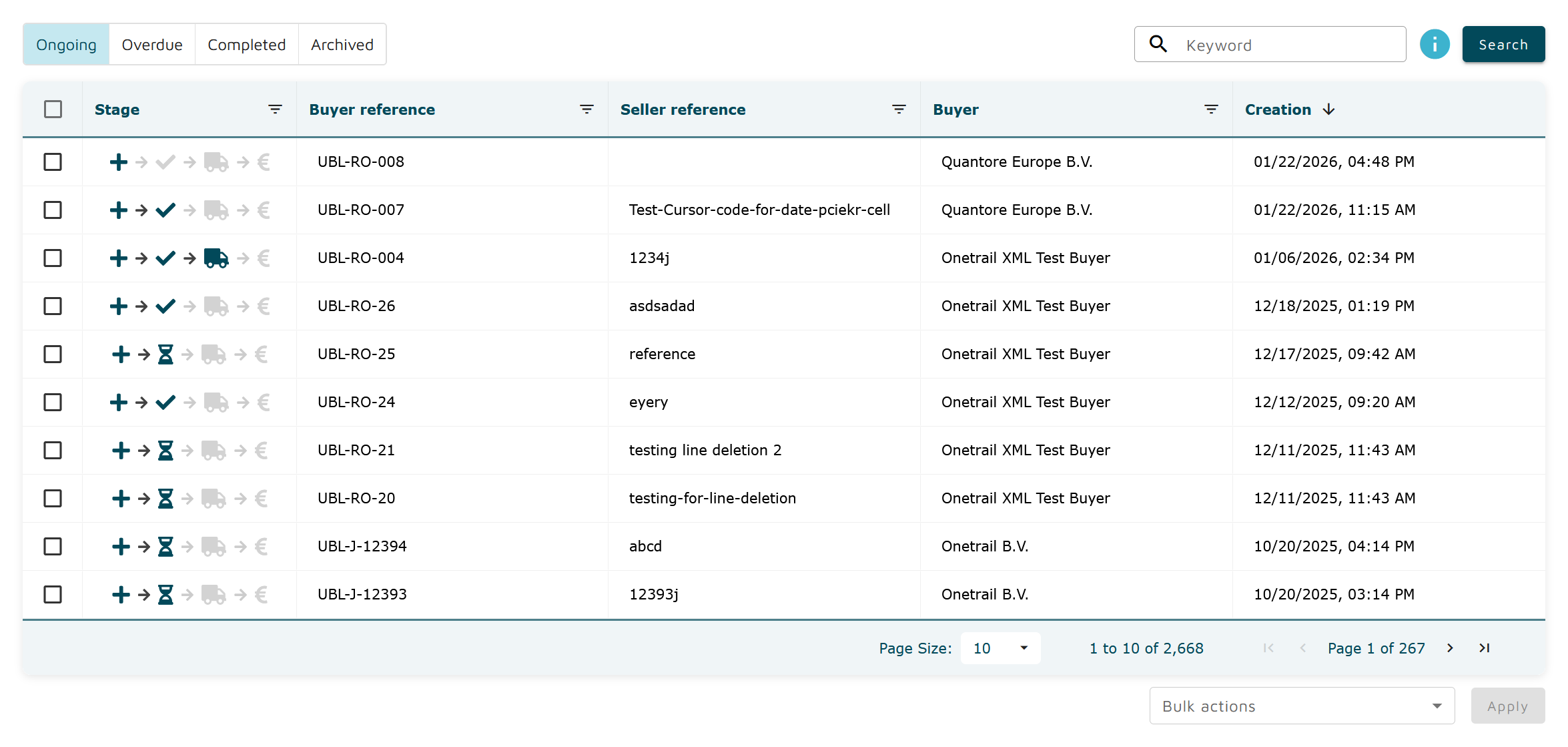
The table also supports selecting multiple rows. This functionality will be used for applying actions on multiple orders (Bulk actions).
Keyword search
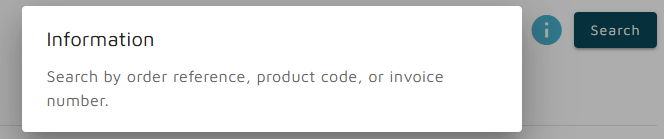
The keyword search feature enables finding orders that include a specified keyword using partial matching.
Above the table with orders (top right), there is a search bar where input can be provided to initiate a search.
Order Category
The Order Category feature allows filtering orders based on specific categories, making it easier to manage and track them.
At the top left above the orders table, there is a set of toggle buttons to filter orders by category.
The currently supported categories are:
When first accessing the Orders Overview, the Ongoing category is shown by default unless there are overdue orders where the scheduled delivery date needs to be updated. In this case, the Overdue tab is selected by default, and the other tabs will not be available until the invalid delivery dates are updated.

Continue to: